Step Based Invoice Approvals Overview
There have been significant enhancements made to the Invoice Approval Process, designed to make approvals clearer, more organized, and easier to manage.
You can now configure step-based invoice approvals, allowing approvals to happen in a defined sequence (Step 1, Step 2, Step 3, and so on). Each step must be fully approved before the invoice moves to the next one.
This enhancement builds on your existing approval rules by introducing order and dependencies so the right people review invoices when needed.
How to Update AP Settings
To use step-based approvals, you’ll first need to update and publish your invoice approval settings. Users with Edit Invoice Rules permissions can easily configure this experience.
Navigate to Accounting > Settings > AP Settings, and to the "Approval Rules" tab. Here, you can edit any approval rules which are already set, or click "Add Approval" to begin. For more detailed instructions on the initial configuration of AP Settings, see article: AP Settings - Invoice Approval Setting Configuration
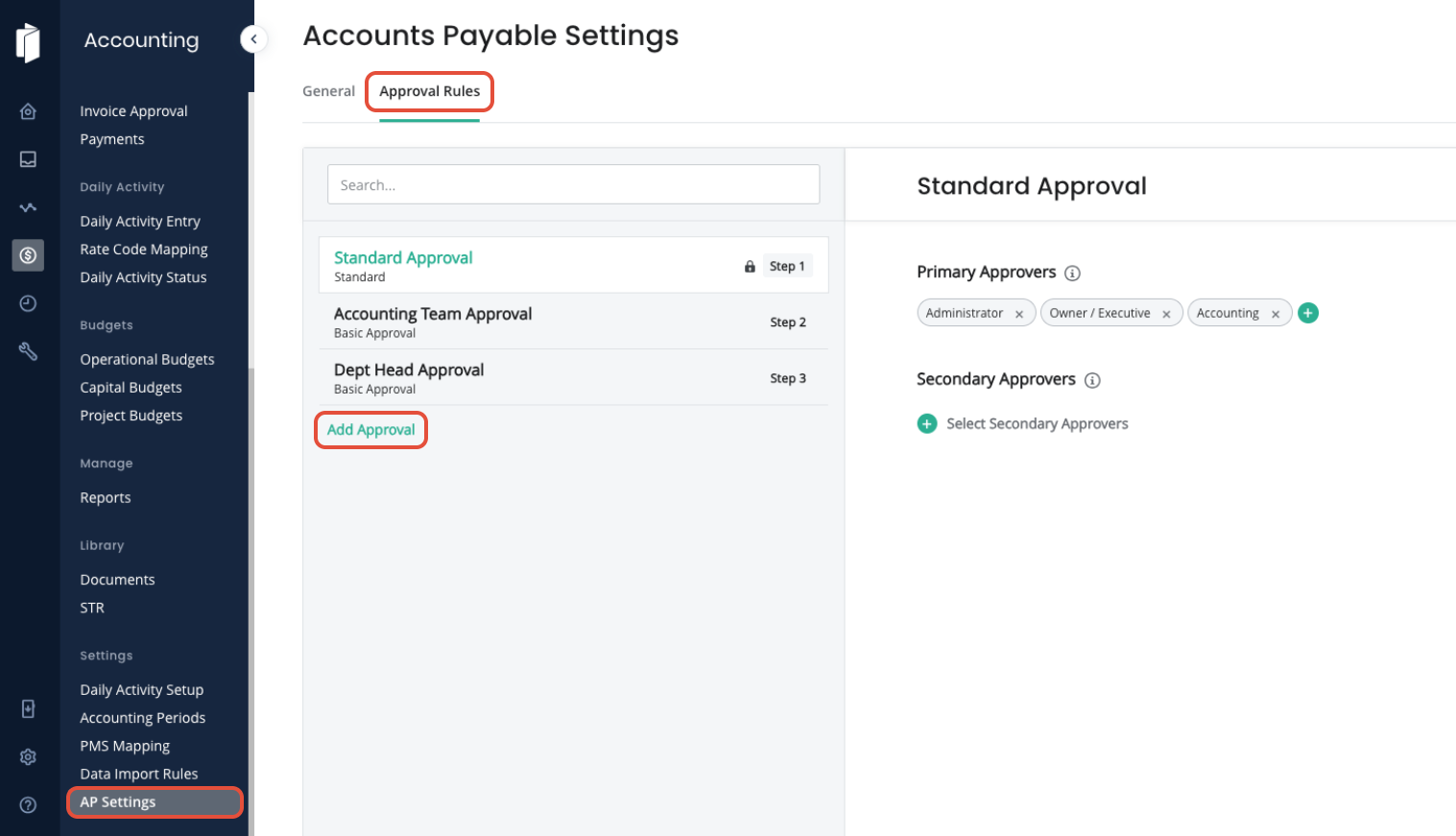
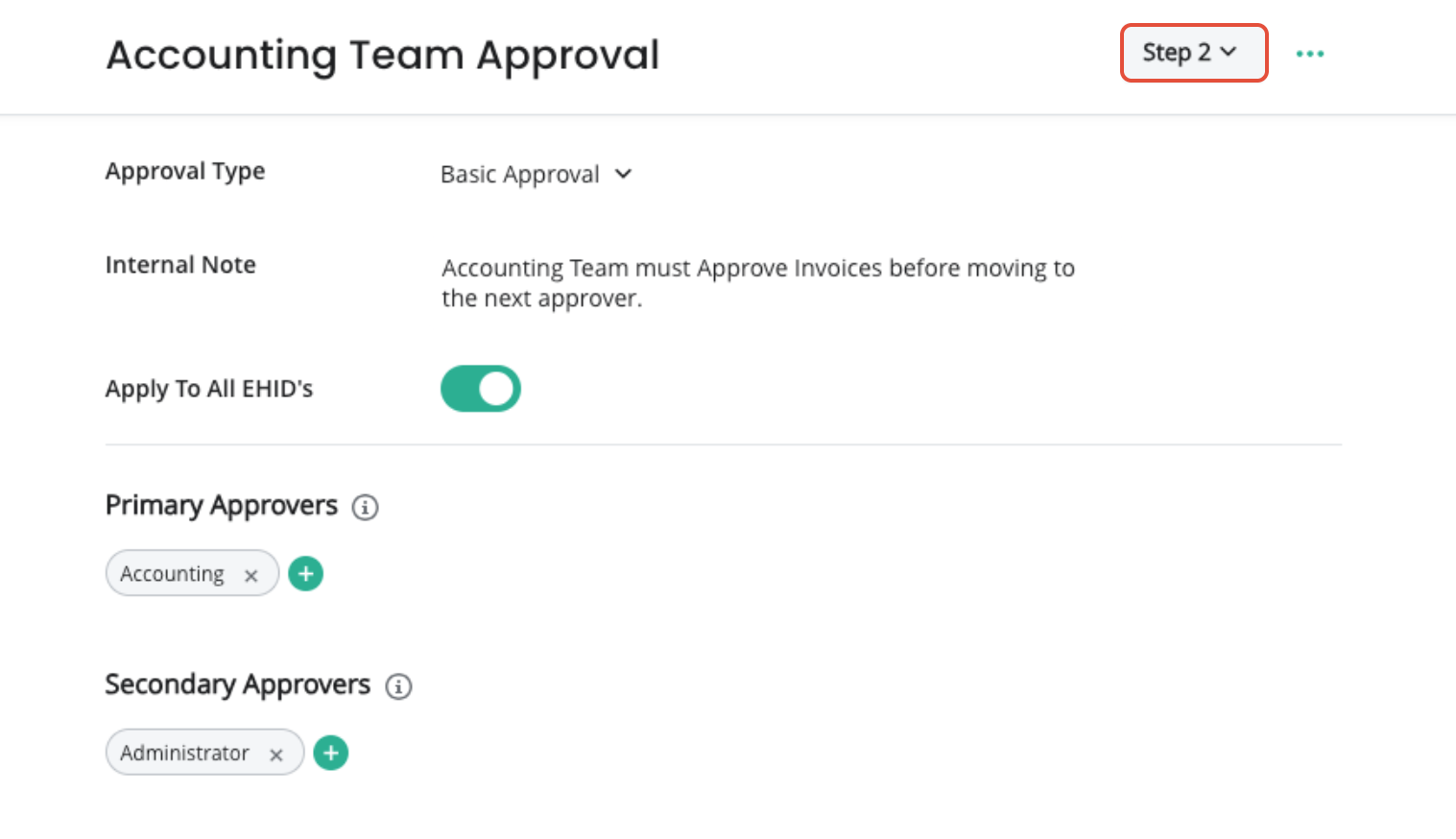
To add an additional step, click Add Approval. Enter the details of the approval such as the Name, Type, Notes, and Approver roles. In the top right corner, select the step number to indicate the order that this approval will be processed. Note: We've added a Basic Approval type, which will typically be the type used.
How to Publish AP Approval Settings
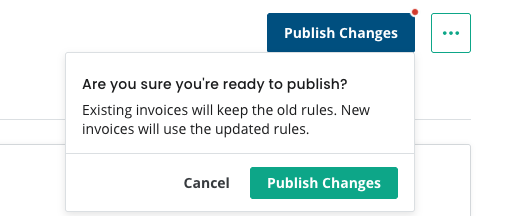
Once you have made updates to the AP Settings, they must be published. This step ensures that your changes are reflected within the Accounts Payable module. Invoices that have already been created will follow the old settings. New invoices added to the AP Inbox after Publishing these changes will use the updated settings.
How to Approve Invoices using the New Approval Settings
When submitting new invoices, they will follow the Approval Steps as outlined in your settings.
In this example we have set 3 Approval Steps:
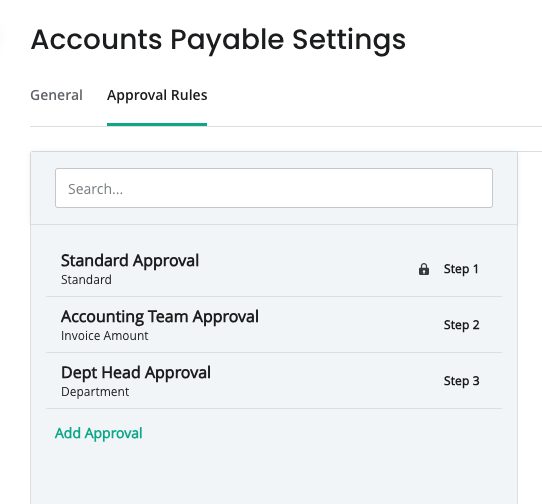
When an invoice is ready to be approved, expand the Approvals Section to see the Approval Steps remaining:
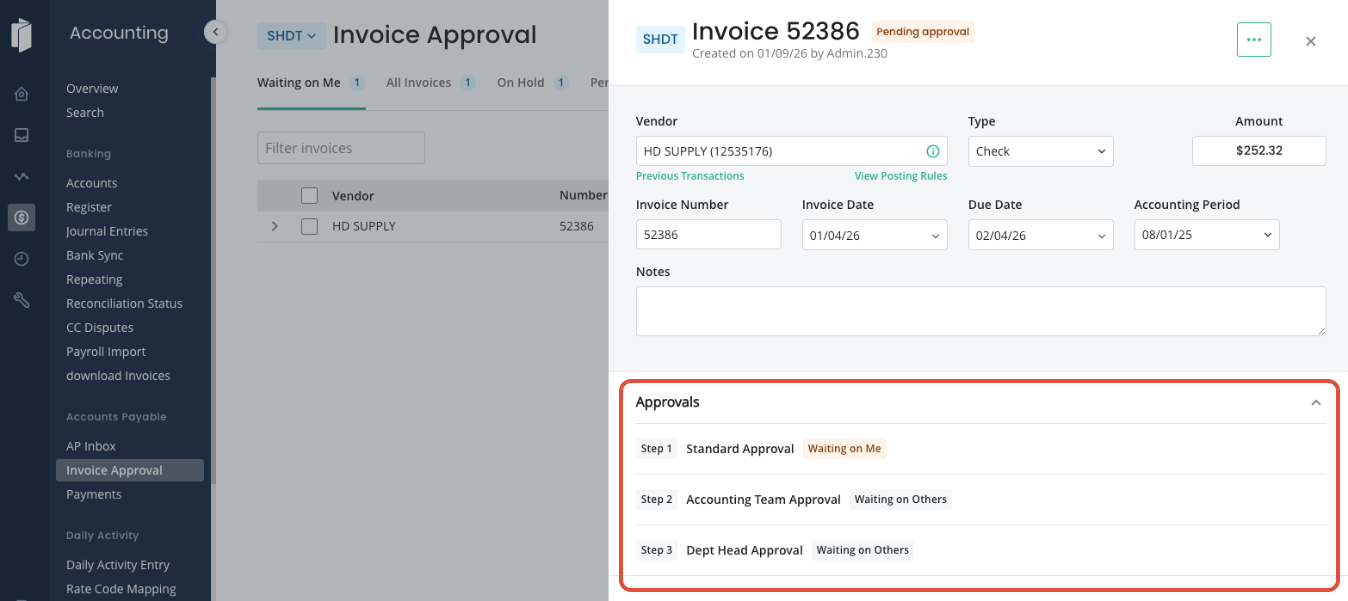
Reminder: Waiting on Me indicates that you are a Primary Approver and it is your task to complete this Approval Step.
Waiting on Others indicates that other roles need to approve the invoice.
Side Note: If you are a Secondary Approver on any Approval Steps, meaning you can approve it if you need to, you will see the option to Approve. Typically, the Primary Approver should complete this step but the Secondary can if the Primary is unable to.
To begin the Approval process, click on Approve to display the steps in order.
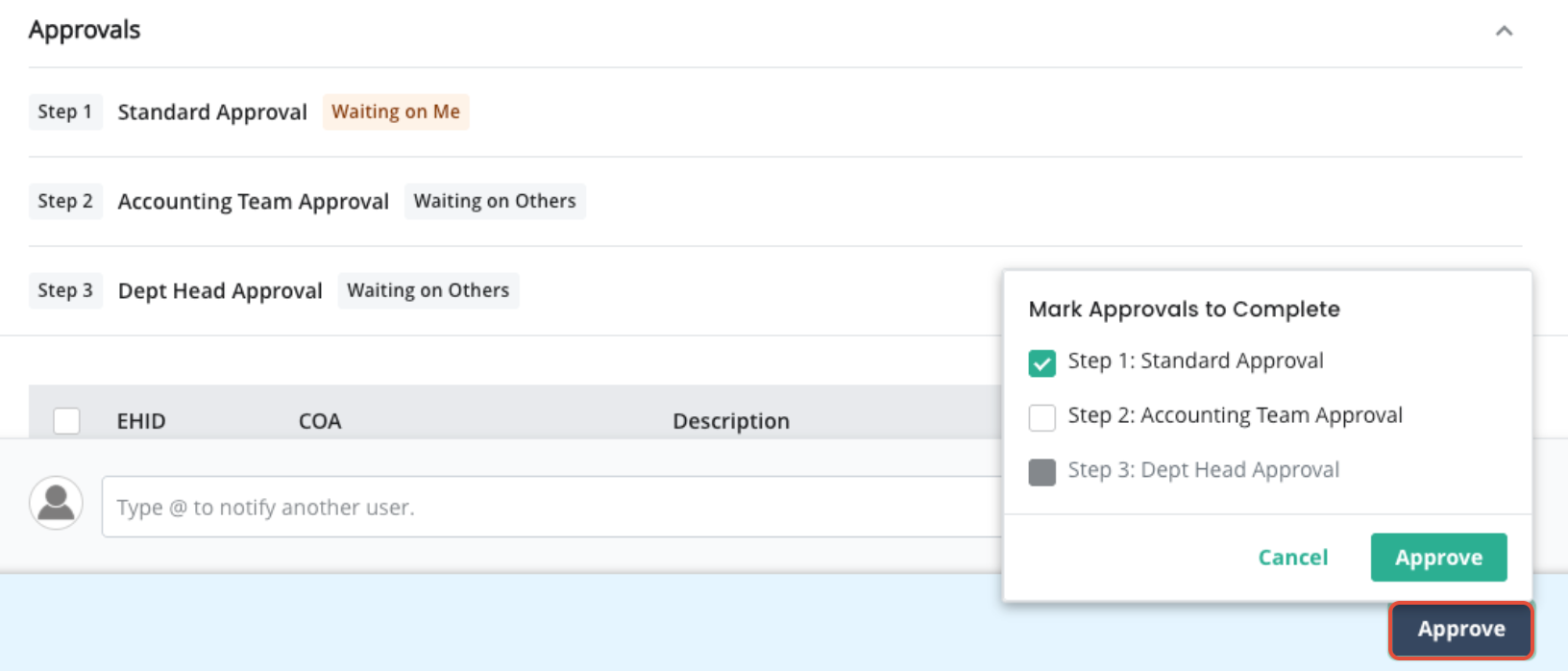
Check the box beside the Approval(s) you are completing, and click Approve again. Once all Approval steps are completed, the Invoice will move to the Payments page.
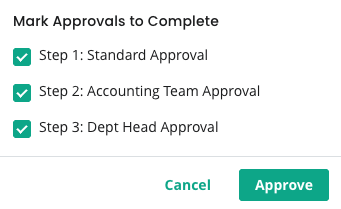
Note: If the user's Role Permission is set as an Approver in multiple steps, they will have the option to Approve all of their steps in order, at one time.
How to Review Approvals for Invoices
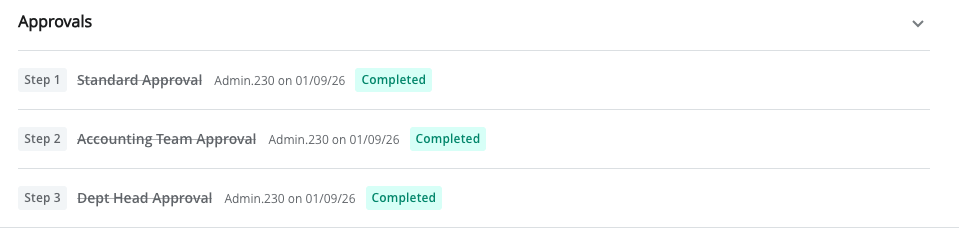
When viewing an invoice, expand the Approvals section to see more detail about the Approvals that have been completed, such as the user who approved, the date, and the status.
Need to Unapprove an Invoice?
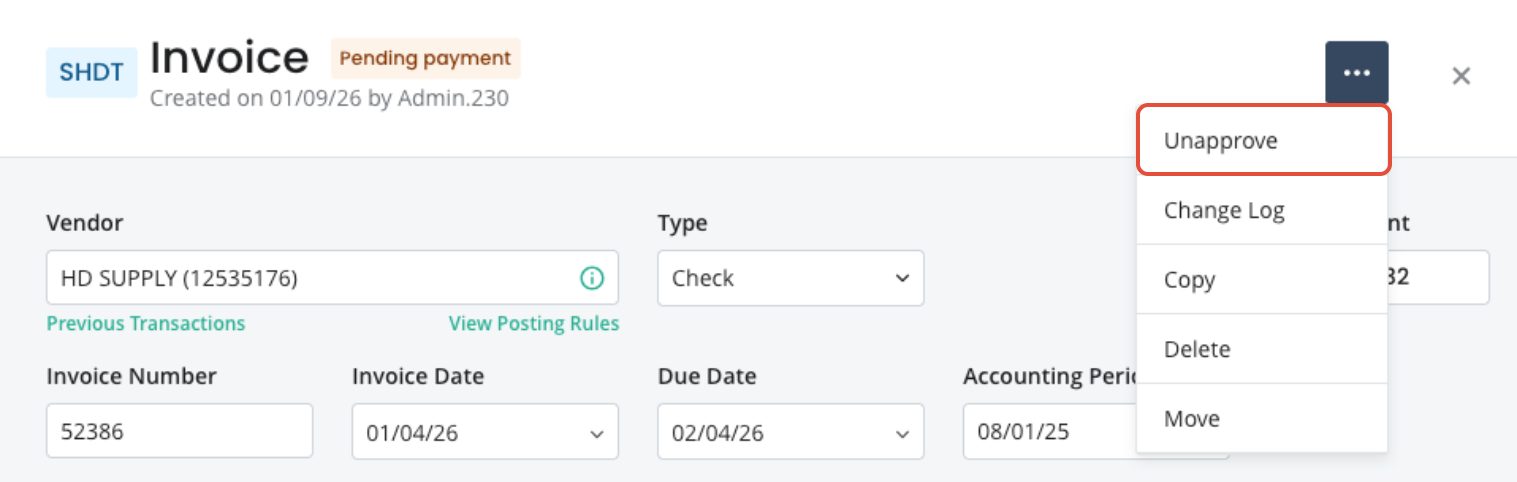
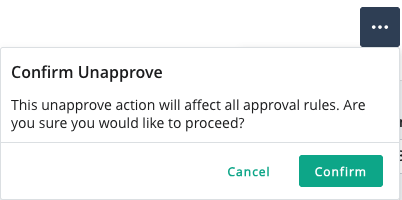
Invoices that have previously been through the approval process can be marked as Unapproved if needed. Click the triple-dot menu of the invoice, and click Unapprove. Then, confirm. Note: All approval steps will be unapproved.
Questions?
Our Inn-Flow Customer Support team is here to help. Reach out anytime via support@inn-flow.com
Was this article helpful?
That’s Great!
Thank you for your feedback
Sorry! We couldn't be helpful
Thank you for your feedback
Feedback sent
We appreciate your effort and will try to fix the article