Receiving in Inn-Flow Procurement is now connected to Accounts Payable. Vendor invoices that arrive by email land in the AP inbox, are read automatically and matched to the purchase order they belong to, so when you open Receiving the order and its invoice are already side by side. You confirm what physically arrived line by line, and the order, Inventory and AP are all updated from that one record. This article shows you how.
What this feature does
Before, receiving started from an order: you opened a delivered order, ticked off what arrived and, if you wanted the invoice on file, uploaded it by hand. The invoice itself was already sitting in the AP inbox, but the two never met.
The new Receiving page brings them together. From it you can:
See every delivery in one queue — each row is one order and the invoice(s) matched to it, with a status chip and a single next-step button.
Compare the order with the invoice automatically — every product is checked for quantity and price differences, and products that appear on only one side are flagged.
Action each line — Receive it, leave it Pending for a later invoice, or Reject it with a reason that is emailed to the person who placed the order.
Assign where it went — pick the storage location for each received line (and split a line across locations) so Inventory is updated correctly.
Nothing here changes the vendor invoice or the amount on it. Receiving records what actually arrived; AP then releases the invoice at the received value.
Good to know Invoices no longer need to be uploaded during receiving. Any invoice emailed to your AP inbox is matched to its order before it reaches Receiving. You can still upload one from Receiving if it did not arrive by email. A product that is on the order but not on any invoice cannot be received — only set to Pending or Rejected. The invoice is the source of truth for what can be received. You can Save & finish later at any point. The session stays in the queue under In progress with the number of lines still open. |
The Receiving queue
Open Procurement › Receiving. The queue lists every open delivery, one row per order, sorted so that sessions already in progress come first, followed by deliveries waiting to be received.
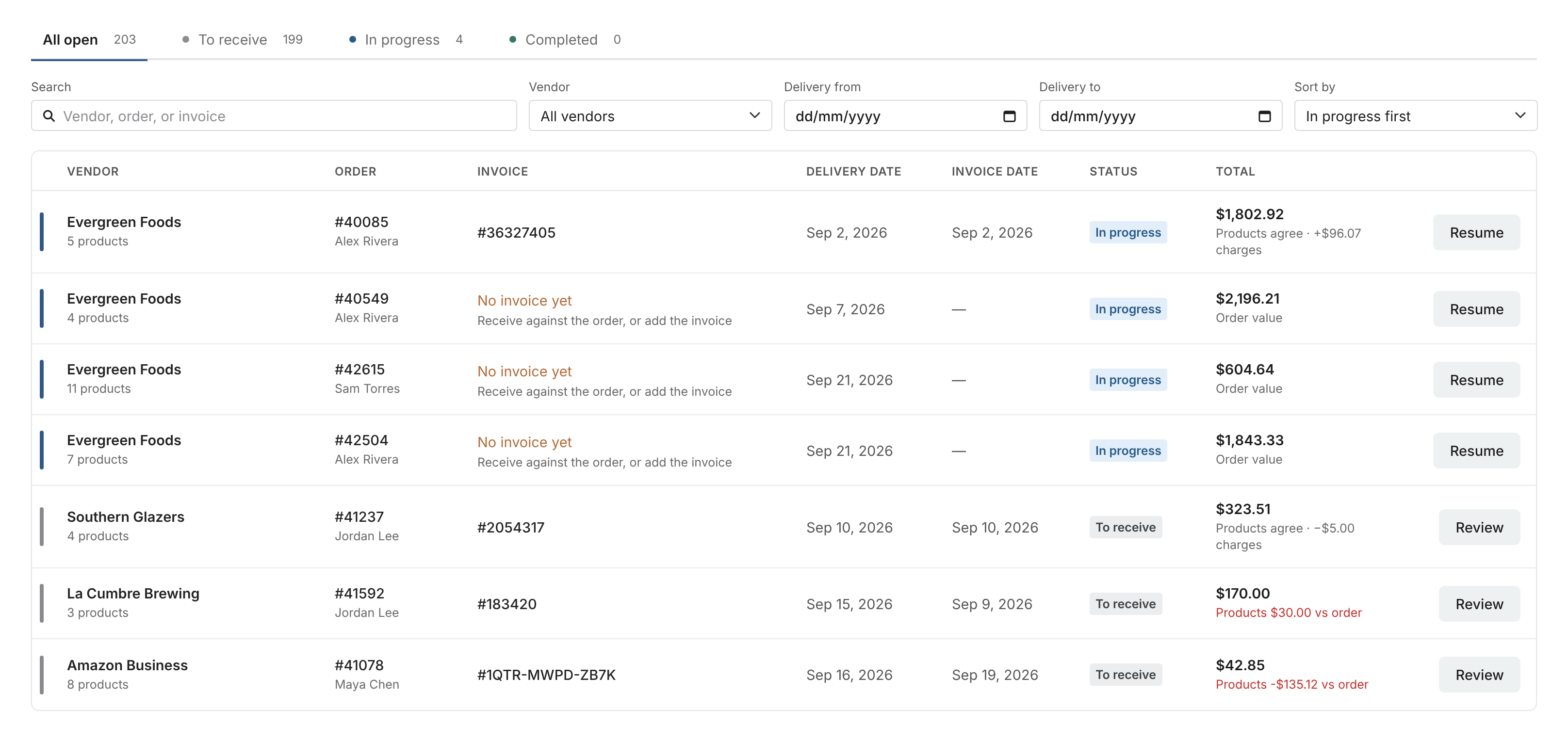
Figure 1. The Receiving queue. Each row shows the vendor, the order, the matched invoice (or "No invoice yet"), delivery and invoice dates, the status and the invoice total compared with the order.
Column | What it shows |
Vendor | Vendor name and the number of products in the delivery. |
Order | Order number and who placed it. |
Invoice | The matched invoice number. "No invoice yet" means the order has arrived but no invoice has been matched to it — you can receive against the order, or add the invoice. |
Delivery date / Invoice date | When the order was delivered and the date on the invoice. |
Status | To receive — matched and ready to start. In progress — some lines already actioned. Completed — receiving finished. |
Total | The invoice total. Underneath, whether the products agree with the order and the difference in charges (tax, shipping) or in product value, shown in red when the products do not match. |
Action | Review to start a new session, or Resume to continue one in progress. |
Use the tabs at the top (All open, To receive, In progress, Completed) to narrow the list, or search by vendor, order number or invoice number. You can also filter by vendor and delivery date range, and change the sort order.
How to receive a delivery
The example below receives Shamrock Foods order #40085 (5 products, $1,706.85) against invoice #36327405 ($1,802.92 including $96.07 tax).
Step 1 - Open the delivery
Find the row in the queue and click Review (or Resume if you have already started). The receiving detail page opens with the order on the left and the invoice on the right.
Step 2 - Check the order and the invoice side by side
The Order panel shows the order number, who placed it, the delivery date and every product as ordered. The Invoice panel shows the invoice number, when it arrived in AP, its total and tax, and every product as invoiced. Click Open file to view the original invoice PDF.
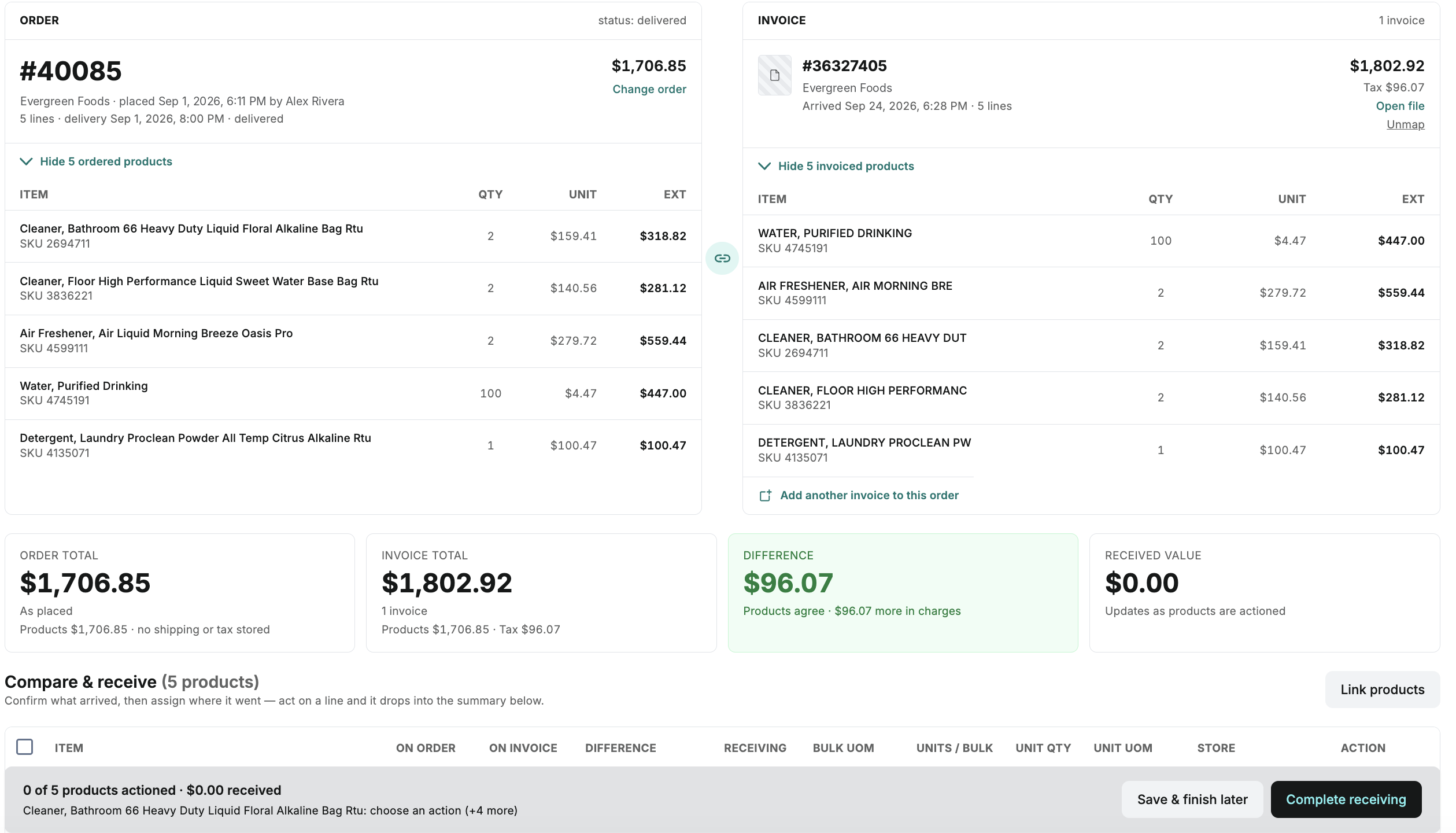
Figure 2. Order #40085 and invoice #36327405 side by side. The totals strip underneath shows the order total, the invoice total, the difference and the running received value.
The totals strip under the panels tells you at a glance whether the two agree. Here the products match exactly ($1,706.85 on both sides) and the $96.07 difference is tax on the invoice, so the Difference tile is green. When product prices or quantities differ, the tile turns red and the difference is resolved line by line in the next step.
If the order or invoice is missing Order without an invoice — the invoice panel offers the best-matching invoices from your AP inbox, a searchable list of all unmatched invoices, an Upload a file option, or Receive against order only. Invoice without an order — the order panel offers the best-matching delivered orders, a searchable list of all orders, or Ordered outside the platform if no order exists in Inn-Flow. A second delivery on the same order — click Add another invoice to this order. Both invoices stay attached to the same receiving session. Wrong order matched — click Change order or Unmap to pick a different one. |
Step 3 - Work through Compare & receive
Scroll down to the Compare & receive table. It lists every product once, combining the order side and the invoice side on the same row, and tells you whether they match.
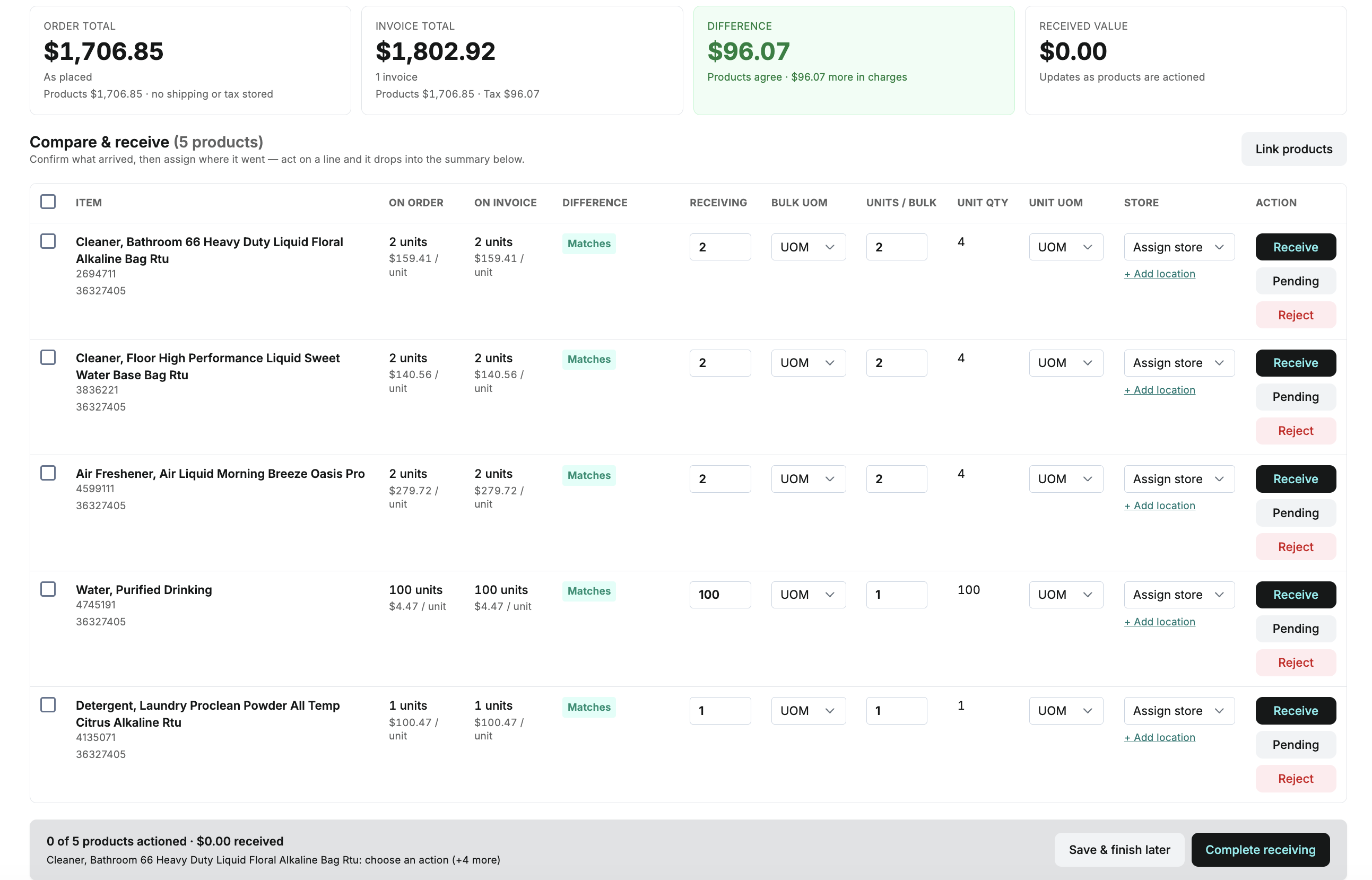
Figure 3. Compare & receive for order #40085. Every product matches between the order and the invoice, so each row carries a green "Matches" chip and the received quantity is pre-filled from the invoice.
Difference chip | What it means | Can you receive it? |
Matches | Same product, quantity and unit price on both the order and the invoice. | Yes |
Doesn't match | The product is on both, but the quantity or the unit price differs. The differing value is shown in red with a note such as "Invoice bills 5 cases, 6 were ordered". | Yes |
Not on order | The product is on the invoice but was never ordered. | Yes |
Not on invoice | The product was ordered but is not on any attached invoice. | No — Pending or Reject only |
For each row, confirm the details and choose an action:
Receiving - the quantity that physically arrived. It defaults to the invoiced quantity; change it if you received more or less (for example, you got 3 cases, not 4).
Bulk UOM, Units / Bulk and Unit UOM - how the vendor sells the product (case, box, bag), how many units are inside one, and the unit the product is stocked in. Unit qty is calculated for you.
Store - the storage location this line goes to. Use + Add location to split one line across more than one store, for example four cases to the Walk-In and two to the Freezer.
Receive - the product arrived and is accepted. Pending - not received now but still expected on a later invoice; the line stays open on the order. Reject - received but refused, or billed but never delivered.
To action several lines at once, tick their checkboxes and use the bulk bar: Assign store, Receive as invoiced or Report issue.
Step 4 - Reject and report a problem (if needed)
Click Reject on a line to open the report dialog. Choose a reason — Wrong item, Wrong price, Not delivered, Damaged item, Short quantity or Other — and add an optional note. The dialog names who will be notified: the person who placed the order. Rejected lines move to the Rejected & reported section below the table and can be undone until you complete the session.
Step 5 - Complete receiving
The sticky footer at the bottom of the page shows how many lines are actioned, the running received value and anything still blocking completion — an unmapped order, lines without an action, or received lines without a storage location. When everything is actioned, click Complete receiving.
Completing the session:
Adds the received quantities to Inventory, per storage location, for properties with the Inventory module enabled.
Releases the invoice to Accounts Payable at the received value, with any shortfall held as an expected credit.
Emails the order creator a list of every rejected line, its reason, note and value.
Records every decision, who made it and when in the audit log.
If you cannot finish now, click Save & finish later. Everything you have done is kept and the delivery reappears in the queue under In progress.
Partial deliveries and split shipments
When part of an order arrives now and the rest later, action what arrived and set the remaining lines to Pending. Those lines stay open on the order. When the next invoice for the same order lands in the AP inbox, it is matched to the same receiving session — open it, click Add another invoice to this order if it was not attached automatically, and receive the remaining lines. The product list shows which invoice each line came from.
How the comparison works Matching between invoices and orders runs when the invoice arrives in the AP inbox, before it is visible in Receiving. It compares vendor, dates, product SKUs, descriptions and totals and attaches the order it is most confident about. If two orders are equally likely, you are shown both and asked to pick. Within a session, products on the invoice are matched to products on the order by SKU and description. If a product appears as two separate rows that are really the same item, select both and click Link products to merge them. An invoice can be attached to only one order. To use it elsewhere, unmap it from its current session first. |
Was this article helpful?
That’s Great!
Thank you for your feedback
Sorry! We couldn't be helpful
Thank you for your feedback
Feedback sent
We appreciate your effort and will try to fix the article