Use these steps if the FOSSE files have not imported, or if you need to import files for prior days. Listed below are the five night audit reports REQUIRED in .txt format:
Code Report Name
NADLYSUM - Daily Closing Summary Report
NADLYCLS - Daily Closing Report
NACACTIV - Credit Card Activity Report
NAMKTNGS - Daily Segmentation Report
NAREVRPT - Revenue Report
To complete the FOSSE Daily Activity Import, there are 2 main steps to be completed:
Part 1 is downloading the files from Fosse.
Part 2 is importing the files into Inn-Flow.
Part 1:
Within FOSSE, run the reports listed below and email them to yourself in .txt format:
- Daily Closing Report
- Credit Card Activity Report
- Daily Segmentation Report
- Revenue Report
*NOTE: Fosse does not permit reports to be downloaded in .txt format (only in .pdf).
Inn-Flow's Fosse PMS Integration requires reports in .txt format for manual import.
Email the reports to yourself in .txt format from Fosse. Then, import the files as described in PART 2 below.
To manually import the Daily Activity files into Inn-Flow:
Log into Inn-Flow
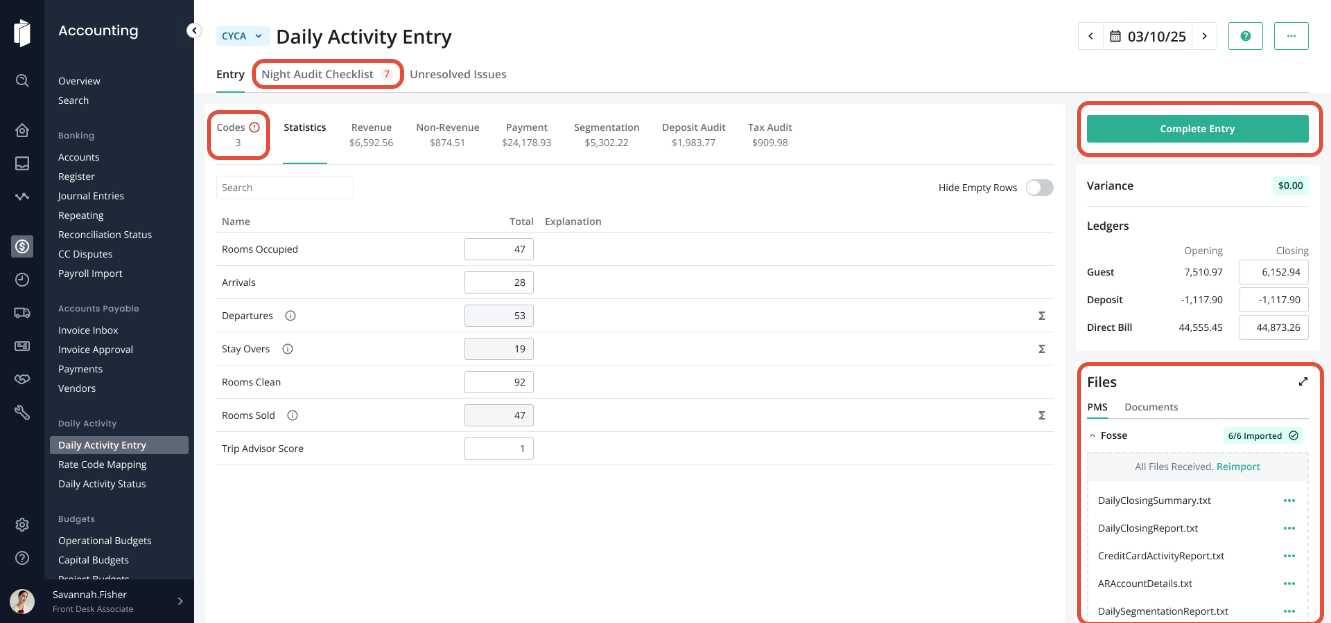
Select Accounting > Daily Activity Entry
If a hotel ID isn’t selected from the top left dropdown, select the hotel you’re importing the files for
from the EHID options.
On the right side of the page, locate the Files section of Daily Activity Entry:
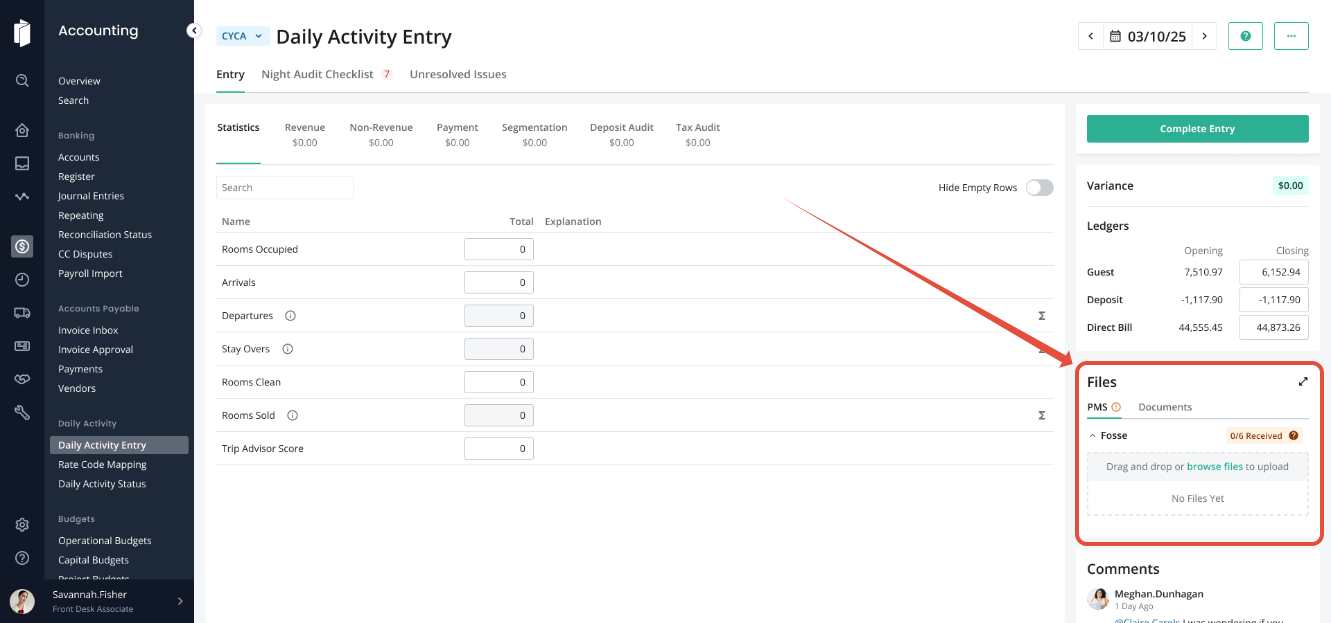
To Upload the files, select browse files, or drag and drop all necessary files into the upload box.
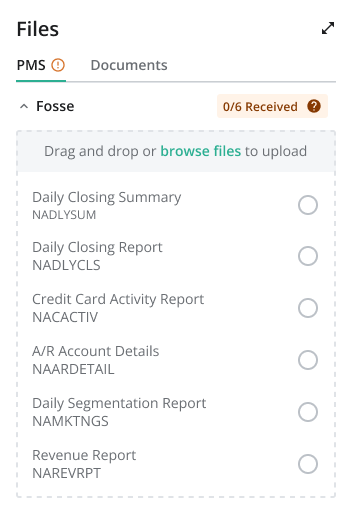
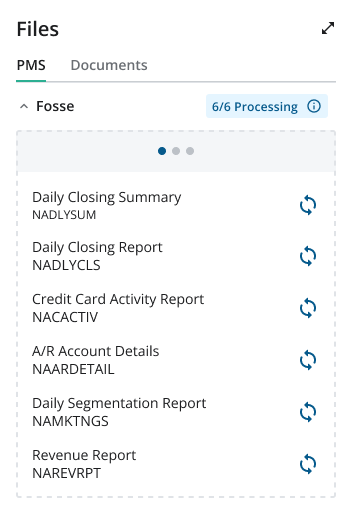
After the files have processed, you will see a success message, showing that all files have imported.
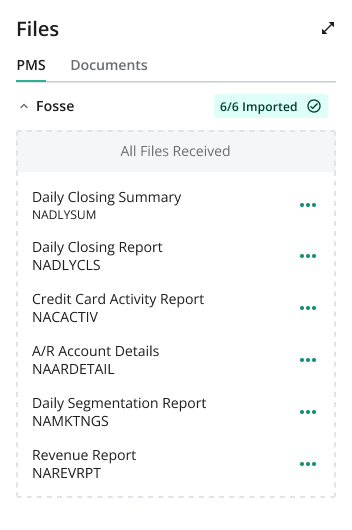
The data will be displayed in each section as expected, and any Codes that need to be mapped will be called out on the "Codes" tab. For more information see article: Choice, Fosse & SynXis: How do I map new Codes
We STRONGLY suggest that you upload PDF version of the reports, or additional night audit reports, within the Documents tab of the file area.
Complete the Night Audit Checklist then Complete Entry to move to the following day.
Was this article helpful?
That’s Great!
Thank you for your feedback
Sorry! We couldn't be helpful
Thank you for your feedback
Feedback sent
We appreciate your effort and will try to fix the article